How it Works
How best to use
Dreckly Days

First you need to find your inspiration
It can come from a YouTube channel, or an Instagram post, maybe you've seen a TikTok, or a FaceBook post, you may even have just being told about a place (I'm sure we all remember 'The Beach')


When you are feeling inspired, simply open up your Dreckly days App
Type in the place you would like to find and save and Dreckly days will drop a pin on the map for you.
If you know where a place is you can simply tap and hold your finger on the map and a pin will be dropped for you.
If you don't know the exact name, use generic place search (accessible from menu) then you can search for terms like vegan restuarant Manchester


When you have found a place, and dreckly days has dropped a pin for you, a quick tap on the pin will open up a new place card for you to complete
Here you can select the category type. Categories are colour coded to make them easy to identify on the map. You can also select a sub category. For example
Accommodation - Campsite / Wild camp / Hotel
Then you can add a short description. If you feel inclined to you can add a star rating and maybe a picture. These show as a little place prompt on the map

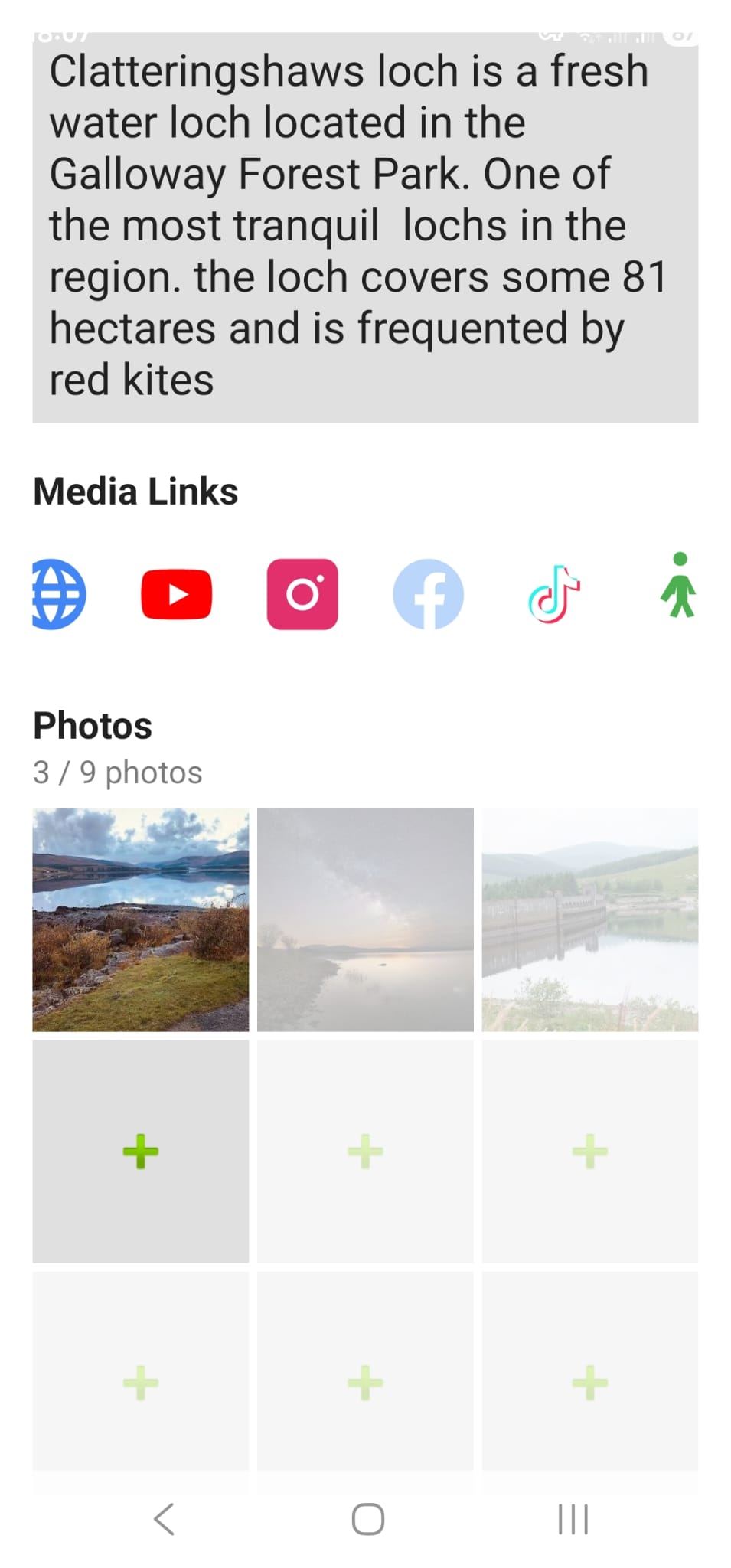

Next you can link to the platform where your inspiration came from. Simply 'share' when you are on the socials site, then copy and paste the link. You can add links to all the major socials, a web page and even to your preferred trail if you are saving a walk
If you want to you can add up to nine pictures from your gallery, (or your camera) and you can give the site a star rating. These can be edited later when you have visited the site
After you have saved your place. Each time you tap on the pin the short description card will open up as a visual reminder. (from here you can tap the (i) and this opens the full place card


When viewing the map you can toggle categories and sub-categories on and off. (no point showing hotels, when you want to wild camp  )
)
Planning your route is as simple as drawing a squiggle around the area you want to visit
Once you have confirmed the area on the map, the places you have saved within that area are pulled across to the route planner, here you can filter by categories/sub categories, and you can select/deselect stops to incude


Once you have selected the places you would like to visit you can preview the route
If the suggested route does not work for you, you can drag the stops around to reorder them
Then you can preview the route again to make sure you are happy with it. Once you are happy, simply confirm the route (don't forget you can leave notes on the route as well